
Tablе of Content
- 1 How Does iCloud Photos Work?
- 2 How to Upload Photos from an iPhone to iCloud
- 3 Why Upload Photos from Your iPhone to the Cloud?
- 4 How to Free Up Storage on Your Phone Using Cloud Storage
- 5 How to Delete Photos from iCloud Without Deleting Them from Your iPhone
- 6 What Happens If You Turn Off iCloud Photo Sync?
- 7 Why Are Photos from Your iPhone Not Uploading to iCloud?
- 8 FAQ
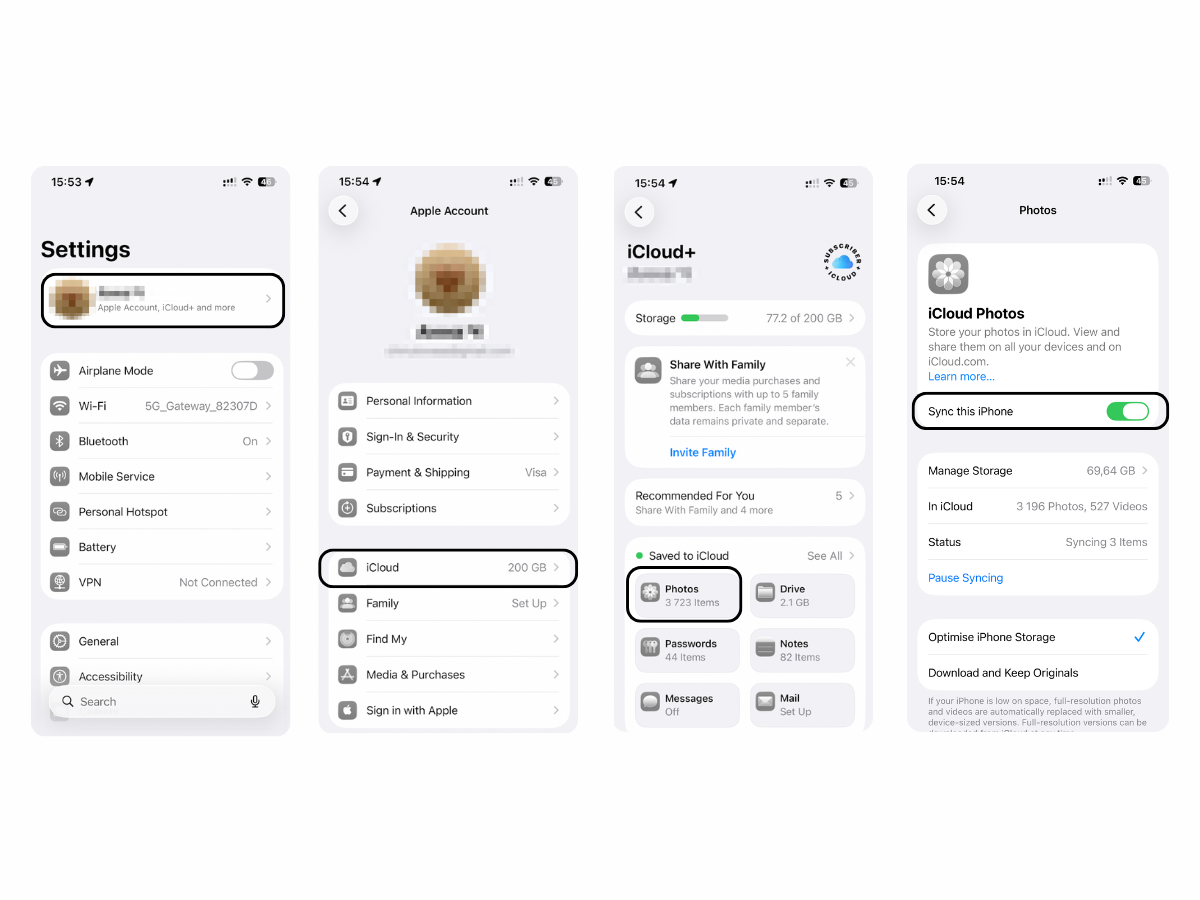
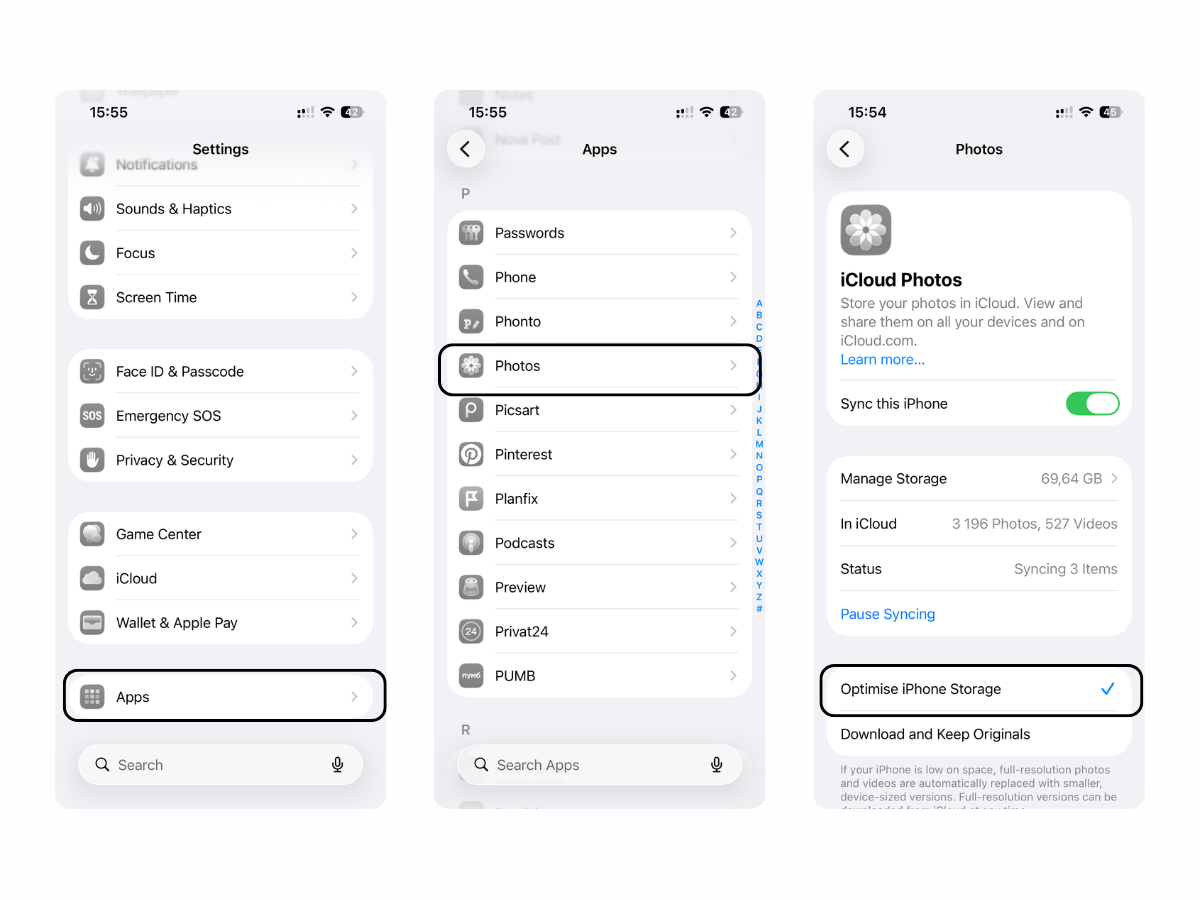
During the summer holiday and vacation season, the issue of insufficient iPhone storage becomes especially pressing. To upload photos to iCloud, open Settings, tap your Apple ID, then go to iCloud, Photos, and enable Sync this iPhone. To keep your images stored in the cloud permanently, leave this option enabled. To free up storage on your smartphone, activate Optimize iPhone Storage: the originals will be stored in the cloud, while smaller optimized versions will remain on the device.
Today, we will explain how to store photos in iCloud, enable synchronization, and optimize storage. Should you have any questions, the iSpace experts are always ready to help.
How Does iCloud Photos Work?
iCloud Photos syncs your photos and videos through cloud storage. Once the feature is enabled, your photo library becomes available on your iPhone, iPad, Mac, and the iCloud website, provided you are signed in to the same Apple Account.
The cloud stores not only the original photos but also any edits made to them. If you crop an image, adjust its colours, or delete a file, the change will appear on all connected devices.
How to Upload Photos from an iPhone to iCloud
To upload media, simply sign in to your account on the device and connect to the internet. Here is how to upload photos to iCloud:
- Open Settings on your iPhone.
- Tap your name at the top of the menu.
- Go to iCloud.
- Open Photos.
- Enable Sync this iPhone.
The files will begin uploading to the cloud. If you already have a large photo library, it is best to connect the device to a charger.
Why Upload Photos from Your iPhone to the Cloud?
If you create a lot of content, cloud storage helps you avoid depending solely on your iPhone’s built-in storage. This becomes especially useful before and during a holiday, when the available space can fill up much faster. Cloud storage helps free up space and makes it easier to share content with friends.
Other reasons to store files in the cloud include:
- data security and protection if your phone is damaged or lost;
- easy access to photos from authorized Apple devices;
- more free storage on the smartphone itself;
- convenient shared access to selected albums.
It also serves as a backup if something happens to your device. The process is easier when purchasing a new smartphone as well: simply sign in to your account and access your files instead of transferring them manually.
How to Free Up Storage on Your Phone Using Cloud Storage
When you upload photos to cloud storage, the files are duplicated: they remain both on the device and in the cloud. To save space on your iPhone, you need to enable storage optimization.
The feature works as follows: the original files are stored in iCloud, while smaller optimized versions remain on the smartphone. When you open, edit, or share a photo, the iPhone downloads the full-resolution file from the cloud.
To enable optimization:
- Open the system Settings.
- Scroll down to Apps.
- Go to Photos.
- Select Optimize iPhone Storage.
The upload speed depends on the stability of your internet connection and the size of your photo library.
How to Delete Photos from iCloud Without Deleting Them from Your iPhone
Do not delete photos from your phone while iCloud Photos is enabled. When synchronization is active, deletion applies to the entire photo library: the file will disappear from your iPhone, iCloud, and other devices connected to the same Apple Account.
To remove a file from the cloud while keeping it on your iPhone, first disable synchronization and download the originals to the smartphone. Follow these steps:
- open Settings;
- tap your name at the top of the screen;
- go to iCloud;
- open Photos;
- disable Sync this iPhone;
- select Download Photos and Videos so that the iPhone saves the original files to its local storage.
Wait for the download to finish and check that the required photos open on the smartphone immediately instead of being downloaded from the cloud again. After that, you can go to the iCloud website and delete any files you no longer need.
What Happens If You Turn Off iCloud Photo Sync?
Disabling synchronization disconnects the local photo library from iCloud servers. New photos will no longer be uploaded to cloud storage and will remain stored locally on the device.

Before disabling the feature, you need to choose what to do with the files. If you select Download Photos and Videos, the device will download the originals from cloud storage and save them locally. If you remove the data from your iPhone or interrupt the download before it is complete, part of the photo library may remain only in the cloud, and some files may not be available on the smartphone.
Why Are Photos from Your iPhone Not Uploading to iCloud?
Occasional issues may occur. Here are the most common causes and ways to resolve them:
- there is no space left in the storage — you receive 5 GB of free storage, while additional capacity requires a subscription;
- the network connection is unstable — synchronization may slow down or stop temporarily if the connection is intermittent;
- Low Power Mode is enabled — the system may pause uploads to reduce battery consumption;
- there is a temporary Apple ID issue — if other data is not syncing either, check your internet connection and the status of Apple services, then sign in to your account again if necessary.
To upgrade your iPhone and set up all the services at once, contact iSpace. The specialists will help you choose a device with a suitable storage capacity, configure cloud storage, and upload your photos to iCloud. Instalment plans and financing options are available with your purchase.
FAQ
Can I Upload All My Photos to iCloud to Free Up Storage?
Yes. To do this, enable iCloud Photos and select Optimize iPhone Storage. The originals will be stored in the cloud, while smaller versions that take up less space will remain on the smartphone.
Can I View Photos from Cloud Storage Without an Internet Connection?
Yes, but only files that have already been saved on the device. If only an optimized version of a photo remains on the iPhone, an internet connection will be required to download the original.
How Long Does It Take to Upload Photos to iCloud?
Yes, but only files that have already been saved on the device. If only an optimized version of a photo remains on the iPhone, an internet connection will be required to download the original.
Where Can I Find Photos Stored in the Cloud?
The files are available in the Photos app on Apple devices where iCloud Photos is enabled and the same Apple Account is used. You can also access the photo library on the iCloud website.
If I Edit a Photo on My Device, Will the Changes Appear in Cloud Storage?
Yes, provided that iCloud Photos is enabled and the device is connected to the internet. The changes will be synchronized with iCloud and other devices using the same Apple Account.
Check out more
10 Useful Siri Commands You’re Not Using Yet: What to Say to Your iPhone to Save Time Every Day
“Gray” iPhone: Is It Worth Buying, and What Can Make It Risky?
Which iPhone Should You Buy After Android in 2026? A Beginner’s Guide
Always be aware!
Subscribe to the newsletter and be the first to know about new promotions and special offers