
Apple’s unified ecosystem makes studying as convenient as possible for students and pupils. You can transfer files and photos without extra cables or messaging apps, use a tablet as a second screen, or control your smartphone from a Mac.
Here are some hidden Apple features that can be useful:
- Live Listen with AirPods;
- transcription of complex lectures;
- workspace management with Desk View;
- current stress level tracking on a smartwatch, and many more.
Read on to learn how to use all these tools on iOS, macOS, and other operating systems. If you have any questions, iSpace experts are always ready to help — you can contact them by phone or visit one of the physical stores in Yerevan.
Mac and the Apple Ecosystem for Studying
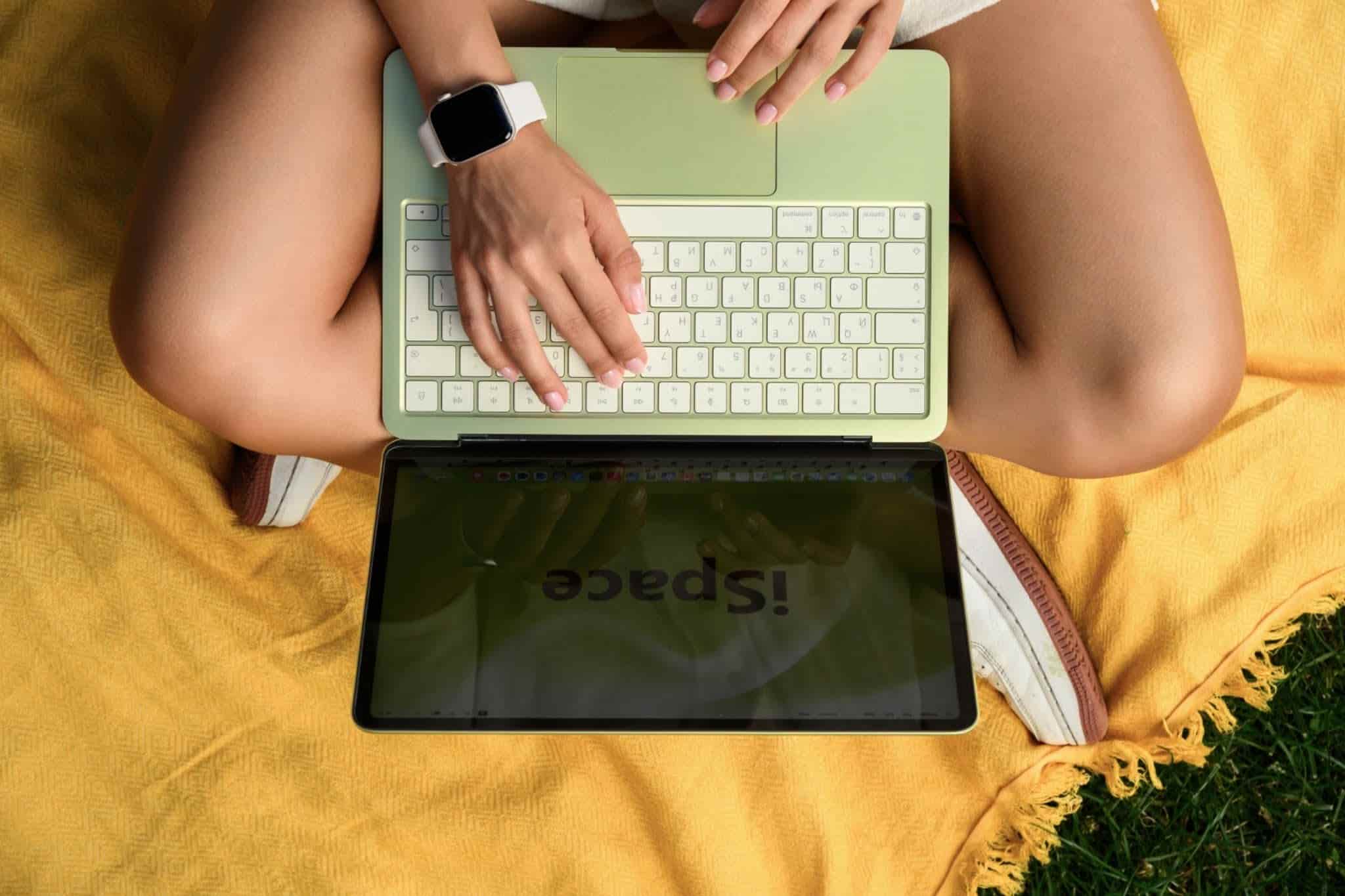
All Apple devices are connected through a single ecosystem: start working on one device and continue on another right where you left off. The main requirement is that both devices are signed in to the same account. A laptop can become the central device for students. Here is how to use a MacBook for studying:
- use your smartphone camera for online classes — in FaceTime or Zoom, select your phone from the list of cameras and place it on a stand to get a good angle. This can provide much better video quality;
- insert photos from your phone directly into documents on your Mac — take a photo of your notes, click an empty area on the Mac desktop, and select “Import from iPhone or iPad”;
- continue work started on another device — you can draft an essay on your tablet on the way home and finish it later on your Mac.
The chipsets in any current model deliver strong performance: you can keep dozens of tabs open without your MacBook freezing. The battery provides up to 18 hours of video playback, so you may not even need to bring a charger to class — the laptop can last through a busy day.
Choose your Mac model:
How to Control Your iPhone from a MacBook Screen
One useful tool is iPhone Mirroring. Your phone can stay in your backpack while its screen appears in a separate window on your Mac: scroll through your Threads feed, reply to messages, or review your notes. Here is how to use it:
- On your Mac, press Command + Space, type “iPhone Mirroring,” and open the app.
- Select your iPhone, connect it, and enter your passcode.
- Control your iPhone using the trackpad and keyboard.
With this feature, you do not need to pick up your phone every five minutes just to check a message from a friend. You can also move notes, files, and photos between devices by simply dragging them from one window to another, making everyday student life noticeably less hectic.

How to Work with Multiple Open Documents at the Same Time
When you need two apps open at once, Split View comes in handy. This mode places two windows side by side: an essay or graphic project on the left, and a research paper or reference material on the right. We explained in detail how to split the screen and set up multitasking in this article.
If you need more than two windows, Stage Manager can help. It organizes apps into work groups and lets you switch between them with a single gesture. For example, you can create separate groups of apps for each subject to keep everything organized.
Organizing Screenshots on iPhone and iPad
Screenshots pile up quickly, and later it can be difficult to find the one you need among hundreds of photos. You can organize them with Freeform, an interactive board for study materials. Here is how to use it:
- Create boards in Freeform by topic — for example, “To Read,” “Movies,” “Term Paper,” “Lab Work,” or “Presentation Ideas.”
- Take a screenshot of the material you need, tap “Share,” and send it straight to Freeform by selecting the appropriate board.
- Delete the screenshot from Photos so it does not take up space in your gallery.
This way, your screenshots will be grouped by board instead of scattered throughout your phone’s photo library. You can also add captions, arrows, and comments to each board. Freeform works across Apple devices, and on iPad it is especially convenient to organize boards using Apple Pencil.
Choose your iPad model:
How to Hear a Lecturer Better from the Back Row with AirPods
A noisy classroom can make it difficult to hear, especially if the lecturer speaks quietly or you are sitting in the back row. AirPods can turn your iPhone into a remote microphone using the Live Listen feature. To activate it:
- On your iPhone, open Settings → Control Center, find the ear icon (“Hearing”), and add it to Control Center.
- Connect your AirPods, put them on, and make sure noise cancellation is enabled.
- Swipe down on the screen, tap “Hearing,” and select “Live Listen.”
- Place your phone on a desk in the front row or on a windowsill, closer to the lecturer.
- Adjust the volume so background noise does not interfere.
This Apple feature for students makes the speaker’s voice easier to hear, helping you follow the material even from the back of the classroom.
Choose your AirPods model:
How Can Apple Watch Help Track Stress and Avoid Overload?
Keep an eye on your stress levels with Apple Watch. The watch tracks sleep, activity, heart rate, and breathing sessions each day, with the data collected in the Health app. To estimate stress levels and monitor trends, you will need third-party apps.
For example, you can download the Harvee app from the App Store to your iPhone. It collects data from your watch and displays a cute fluffy character on the watch face that changes depending on your condition. Once the app has downloaded, open the Watch app on your iPhone, go to “My Watch,” find Harvee, and tap “Install.” To enable this feature, give the app access to Health. Your devices are now set up for stress monitoring.
Choose your Apple Watch model:
How to Set Up Birthday Reminders on iPhone
Many hidden iPhone features can take routine tasks off your mind. With so much going on, it is easy to forget an important date, but your smartphone can remind you. Here is how to add a birthday to your iPhone calendar:
- Open Contacts, select the person, and tap “Edit” in the top-right corner.
- Scroll down, select “Add Birthday,” and enter the date.
- Tap “Done” — the information will sync with Calendar.
- In Settings, open “Calendar” → “Default Alert Times” → “Birthdays” and choose when you want to receive the reminder.
It only takes a moment to set up, and you will no longer miss a classmate’s or teacher’s birthday.
How to Show a Drawing, Model, or Lab Project During an Online Class
During distance learning or online courses, you may sometimes need to show a physical object rather than a document on your screen, such as a hand-drawn diagram, an architectural model, or the result of a lab project. The front-facing camera is not very convenient for this because the image appears mirrored.
Desk View is a useful Apple feature for students: it uses the ultra-wide camera on an iPhone or the Mac itself to show your workspace. The screen can display both you and your desk at the same time. Simply open Desk View, allow access to your iPhone, and connect it as a second camera to display the image. You can also use the built-in camera on some Mac models.
How to Use an iPad as a Second Screen for a Mac
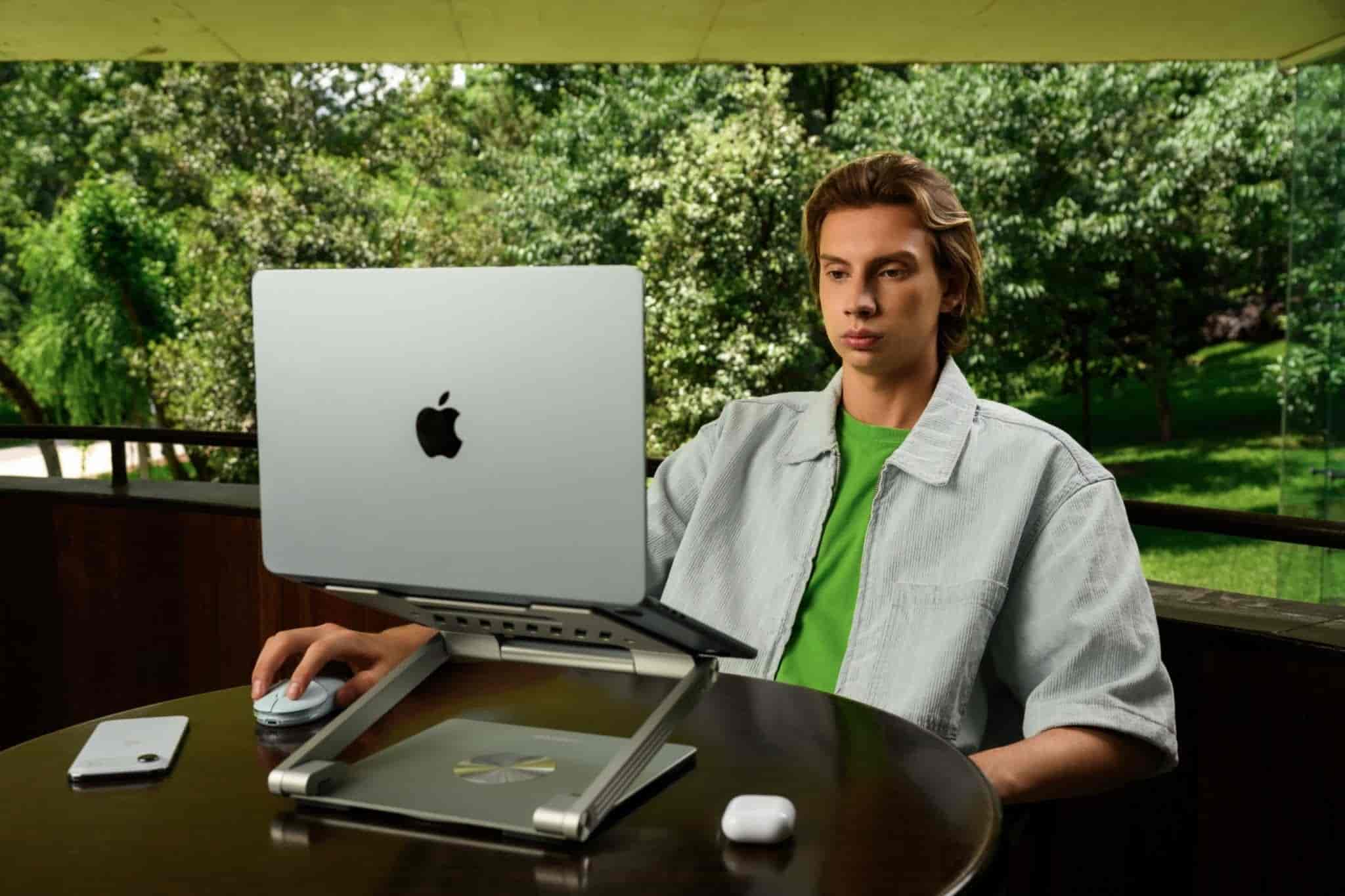
If one screen is not enough for your work, add an iPad. No cables are needed — use the Sidecar feature, which can be enabled through System Settings and the Displays menu.
This is convenient for studying: you can work on a presentation on the main screen while keeping notes, sources, and references open on the iPad. The same cursor and keyboard can be used across both devices.
How to Quickly Transfer a Photo of Notes or a Formula from Your iPhone to a Mac
If you need to insert a graph or formula into a document and do not want to type it from scratch, Continuity can help. On your Mac, place the cursor where you need the image, right-click, and select “Insert from iPhone” → “Take Photo.” Take a picture of the item with your iPhone and tap “Use Photo” — the image will appear in the document immediately. There are a few requirements: both devices must use the same Apple Account, and Wi-Fi, Bluetooth, and Handoff must be enabled.
How to Automate VPN on iPhone with Shortcuts
If a study resource is only accessible through a VPN, you can automate its launch. Hidden iPhone features can help here as well — the Shortcuts app can handle the routine for you:
- Open Shortcuts, go to the “Automation” tab, and tap “+”.
- Select the “App” trigger and choose the app, such as Safari, that should activate the VPN when opened.
- Tap “Add Action,” find your VPN app, and select “Set VPN Connection” with the status set to “On.”
- Turn off “Ask Before Running” so the automation can run in the background, then tap “Done.”
You can set up a similar automation for the Action Button on your iPhone.
How to Record a Lecture and Get a Transcript in Notes on iPhone
If you cannot keep up with taking notes during a lecture, simply start an audio recording in Notes. Select “Record Audio” to create a new note. If you want a text transcript of the speech, tap the text icon next to the recording. This makes it easier to copy text, search for specific phrases, and add selected passages to your notes.
How Can Apple Intelligence Help with Studying?
Apple Intelligence can be useful when working with text. It can summarize long documents, highlight key points, proofread drafts, generate wording, and find answers based on visual input. Keep in mind that the available features and supported languages depend on the device and country. It is best to check compatibility in advance.

Apple devices make everyday routines easier. At iSpace, an Apple Premium Reseller in Armenia, you can find everything you need for a successful academic year. Our experts will help you choose a MacBook for students based on your needs.
We offer special credit and installment payment options, making it easier to upgrade your devices on favorable terms. Visit our stores in convenient locations across Yerevan or place an order online with home delivery. If needed, you can also contact our authorized iSupport service center. To stay up to date with new products and useful tips, read our blog and follow us on social media.
FAQ
What Is the Automation App on iPhone Called?
It is called Shortcuts. You can create automated workflows and chains of actions to simplify everyday routines.
Can Apple Watch Measure Stress Levels?
Apple Watch continuously tracks data such as heart rate, heart rhythm, and sleep quality. However, the watch itself does not measure stress directly — it provides underlying data that third-party apps can use to monitor stress levels.
What Is AirPods Live Listen Used For?
The feature turns your iPhone into a remote microphone that sends sound directly to your AirPods in real time.
What iPhone Features Are Useful for Studying?
You can use your iPhone to scan documents, record audio, transfer videos, organize screenshots, and automate routine actions. You can find even more useful tips in the iSpace blog.
Check out more
iCloud Photos: How to Upload Photos to iCloud and Free Up Storage on Your iPhone
How to Reinstall macOS: A Step-by-Step Guide
Windows PC or MacBook: 7 Reasons to Choose an Apple Computer
Always be aware!
Subscribe to the newsletter and be the first to know about new promotions and special offers