
Tablе of Content
If you have bought a new Mac, setting it up and transferring data will not take much time. But to do this, you need to use built-in software and know the nuances. We will explain how to quickly and easily move apps, photos, and documents from your old device.
Why Does Migration from Mac to Mac Require a Careful Approach?
Moving between devices involves transferring files, an account, and system settings. If errors occur during the process, the information may become incorrect. This often happens due to differences in chipset architecture, for example, if you are moving from an iMac with an Intel processor to a current all-in-one with Apple Silicon.
Data Loss or Corruption
If an error occurs on the old device, the migration process may freeze, and the data transfer may finish incorrectly. Transferring materials over the network is not always convenient, as an unstable Wi-Fi connection can interrupt the process.
Keep in mind that when the “Optimize Storage” feature is used in iCloud, only a placeholder for a specific file remains on the old device, while the file itself is not physically stored on the drive. In this case, it is important to sync with the cloud on the new device so the data is displayed.
Transferring Apps and Settings
Apps on Mac are often linked to an account or license. When transferring them to a new MacBook or iMac, we recommend first deactivating the software on the old device and then launching it again on the new one.
How to Prepare for Migration: What Should You Know Before Starting?
It is important to prepare for the process properly. To reduce risks, update the OS on the old device — you will need the latest version. To save time, use a Thunderbolt or Type-C cable between the devices. If you plan to transfer media over Wi-Fi, be sure to place the devices close to each other.
Backing Up Data
File copies increase the level of security. Apple’s proprietary OS for laptops and computers has a built-in automatic backup system called Time Machine — enable it and follow the on-screen instructions. 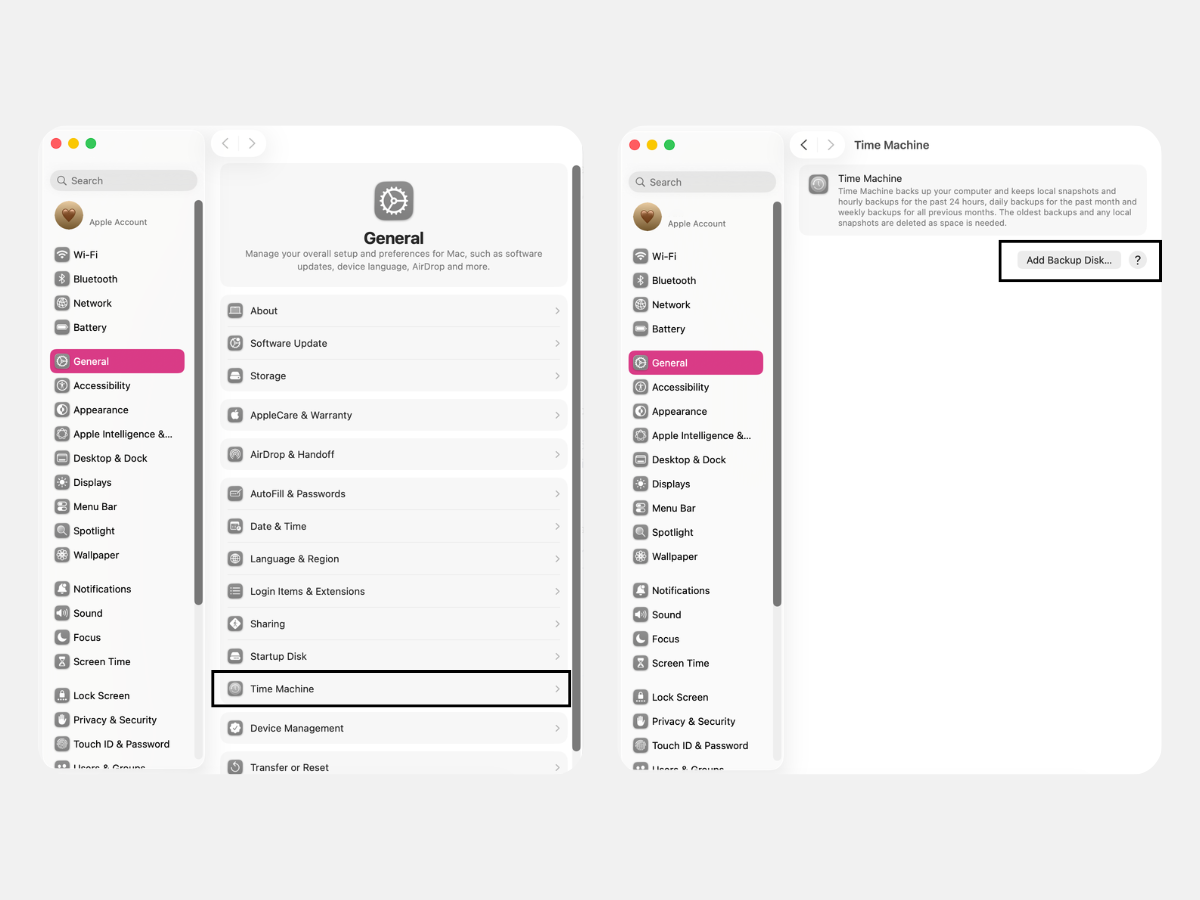
If you are transferring critical files, it is better to copy them manually to an external drive. This copy will be useful if some of the information is damaged during the transfer.
Checking App Compatibility
Check in advance whether the apps will work correctly on the new device by seeing if the latest version of the app is available in the App Store. If the software is third-party, check its chipset compatibility information through Finder. You will need the “Universal” or “Apple Silicon” labels.
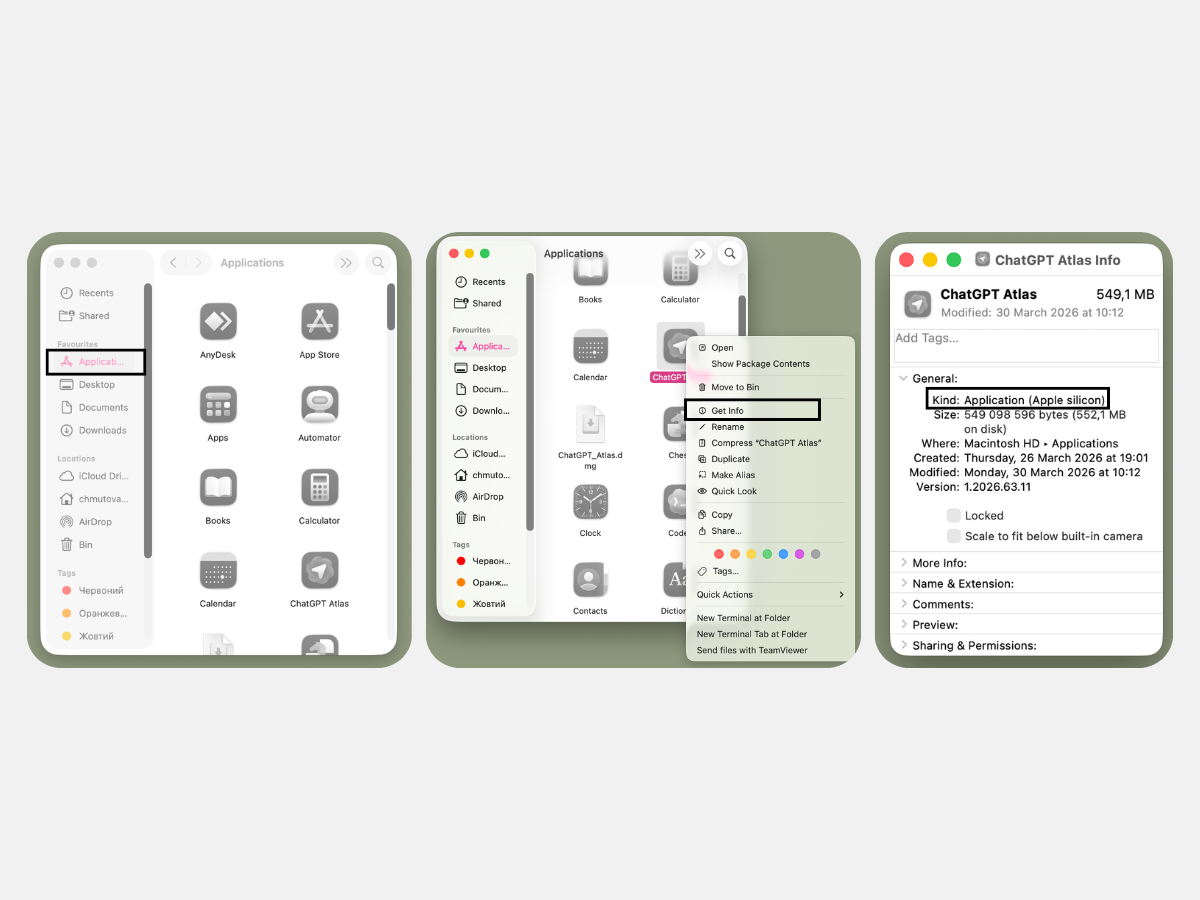
Apps designed for Intel can run on the latest Mac versions through Rosetta. But limitations may sometimes appear. In that case, it is better to download the app and install the required version on the new device.
How to Use Migration Assistant to Transfer Data?
You will not have to copy all the data completely manually. Apple Migration Assistant exists for transferring files and settings on Mac.
What Is Migration Assistant on Mac?
The system utility “Migration Assistant” is designed to transfer documents, apps, system settings, and user accounts. It integrates the copied data set into the already installed operating system. Migration Assistant does not delete materials from the old MacBook and does not change the OS on another device.
How to Launch and Set Up Migration Assistant?
To use “Migration Assistant,” go to the “Applications” folder or open Spotlight, then find the app in search.
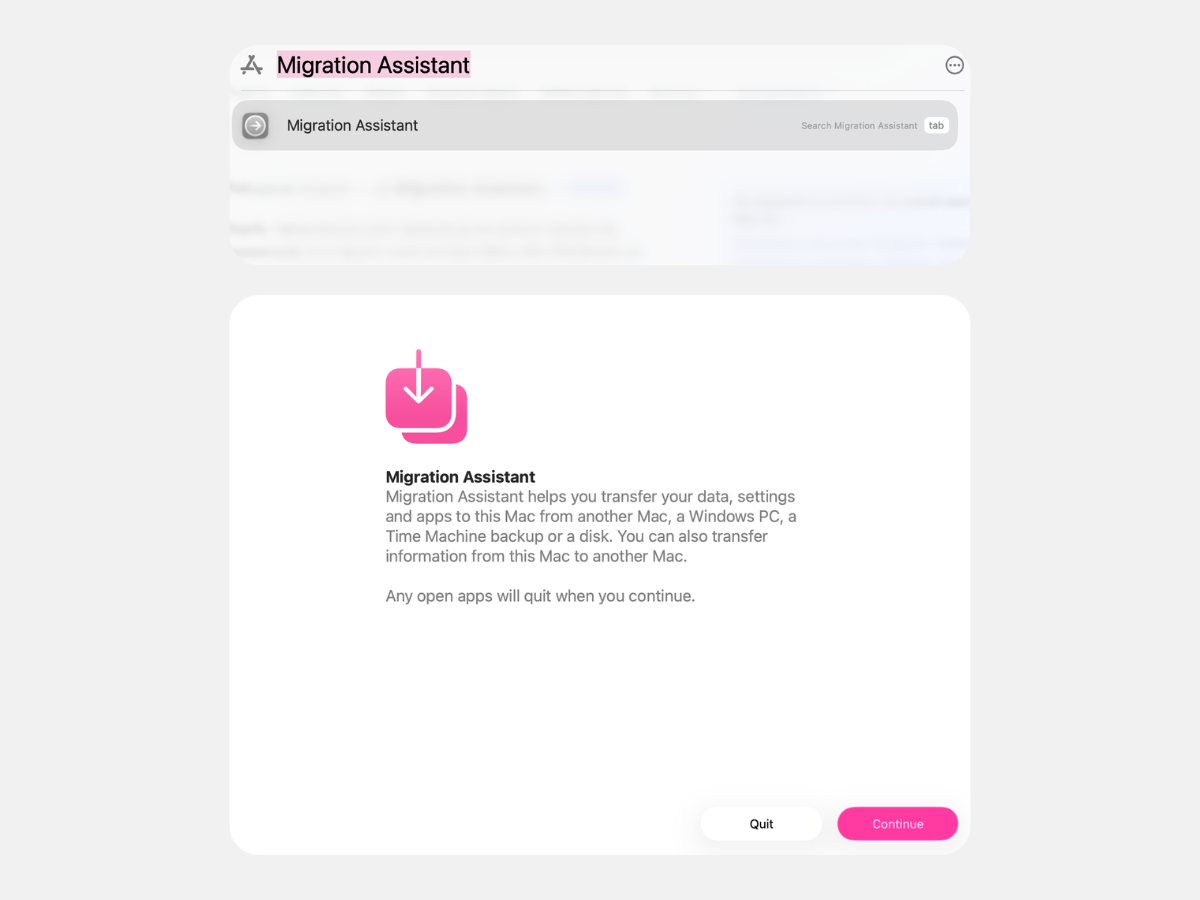
The sequence of steps is simple:
- Launch Migration Assistant on both devices.
- Enter the administrator password and confirm when a message about making changes appears on the old device.
- Select the transfer option and click “Continue.”
- Before clicking “Continue” again, make sure the security codes match.
- Select the data you need to transfer.
When the process is complete, close Migration Assistant and sign in to the account on the new device. The migration time depends on the amount of content.
Common Problems During Migration
If you do not copy data manually and use Apple Migration Assistant instead, the likelihood of problems is minimal. However, errors may appear due to different macOS versions or connecting to different Wi-Fi subnets.
Do not interrupt the transfer process, even if the progress bar has not changed for half an hour. The main thing is that the disk activity indicator keeps blinking.
If you have problems or difficulties with data transfer, contact the experts at iSpace — Apple Premium Reseller in Armenia. By the way, in our physical stores in Yerevan and online store, you can upgrade your Apple devices on favorable terms. Delivery is available throughout the country.
FAQ
Do You Need to Transfer All Apps from the Old Mac?
Do not transfer software you do not use. When moving from a MacBook with Intel to a device with Apple Silicon, it is better to download optimized versions from the App Store to the current device.
How Can You Complete Migration Quickly When Time Is Limited?
To speed up the process, uncheck the “Applications” section — you can download them later. When transferring via cable, the speed increase can reach up to 1,000 MB/s.
How Do You Transfer Passwords and Accounts to iCloud?
“iCloud Keychain” will help transfer passwords and accounts correctly. On the old Mac, check the “Passwords and Keychain” section in System Settings and sync the information. On the second device, sign in with the same Apple ID and confirm the operation. This also applies to passwords in Safari and Wi-Fi keys.
View All Mac Models
ALSO READ:
iMac or Mac mini: Choosing a Universal Computer for Study and Entertainment
MacBook Air With The M5 Chip — A Unique New Release Of The Year
iPhone 17e — What’s New That Apple Offers
Always be aware!
Subscribe to the newsletter and be the first to know about new promotions and special offers