
Tablе of Content
Switching from Windows to a MacBook can be simple and straightforward with the MacBook Neo. It is an excellent Apple ultrabook for beginners: compact, quiet, long-lasting on a single charge, compatible with Apple Intelligence, and powerful enough for documents, web browsing, video calls, spreadsheets, and basic photo editing.
To get comfortable with macOS faster, you only need to learn the essential system settings, get used to the Command key instead of Ctrl, and download alternatives to familiar Windows apps. Setapp makes this process simple. This guide explains in more detail how to switch from Windows to Mac and set up the system without unnecessary hassle. For extra support, contact the iSpace experts.
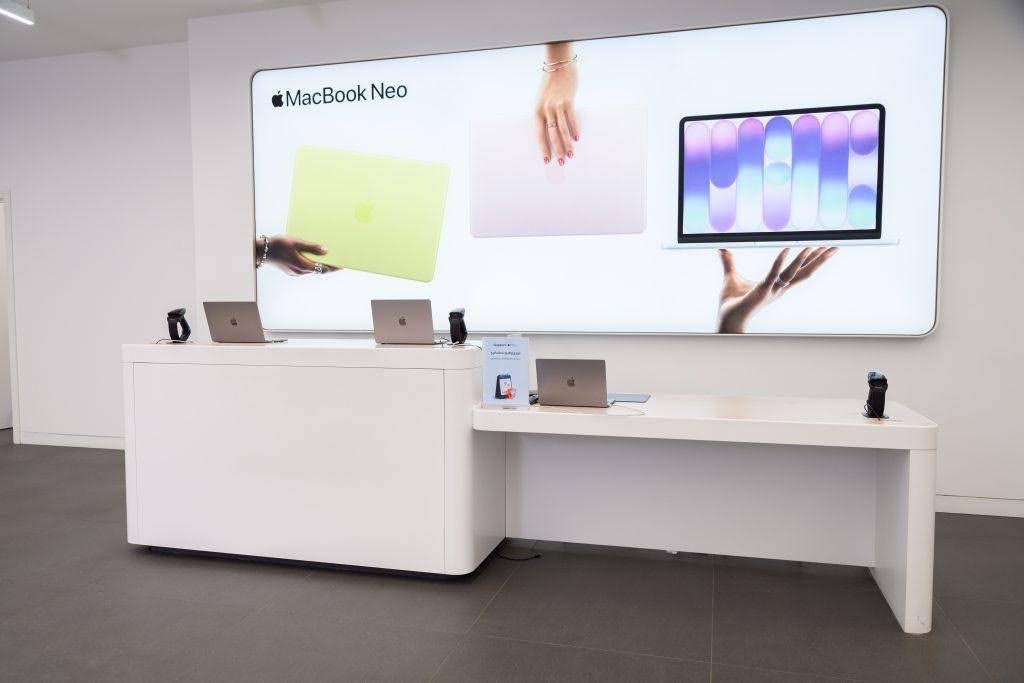
MacBook Neo: An Apple Laptop for Windows Switchers
Switchers, or users moving from one operating system to another, often hesitate when choosing their first device for a new platform. Apple offers a practical option for beginners: the MacBook Neo is ideal for:
- studying and working;
- browsing the internet;
- working with documents, presentations, and spreadsheets;
- watching films and TV series;
- basic photo editing.
The A18 Pro chip delivers the required performance. The ultrabook has an anodised aluminium body, while its passive cooling system remains completely silent.
The device also provides up to 16 hours of battery life, making it easier to plan a full day away from a power socket. The Mac supports Apple Intelligence and the brand’s full range of proprietary services.

Is It Difficult to Switch from Windows to Mac Straight Away?
When planning how to switch from Windows to Mac without unnecessary difficulties, many users have doubts. The main concerns usually include:
- having to change habits developed over many years;
- losing access to familiar software;
- facing difficulties when transferring files;
- finding the interface too complicated or confusing;
- having to spend money on licences and applications.
In reality, adapting usually takes only a few days. The main adjustment involves learning a few basic shortcuts: for example, the Command key (⌘) is used instead of Ctrl in most cases.
Application menus are arranged in a compact bar at the top of the screen and change depending on the active window. Files, folders, and applications can be found through Finder. It may sound unfamiliar at first, but most users quickly get used to the new system.
Setapp for Finding and Installing Alternatives to Windows Apps
To make the transition easier and avoid worrying about how to get used to a MacBook, install alternatives to the applications you used before. Almost any essential program can be easily installed on a Mac.
What Is Setapp and Why Do Mac Beginners Use It?
Setapp is a subscription-based platform developed by MacPaw. It is similar to Netflix, but instead of films, it provides access to applications.
There is no need to search for utilities on third-party websites or overpay for separate licences. Setapp includes more than 270 applications and offers a seven-day free trial.
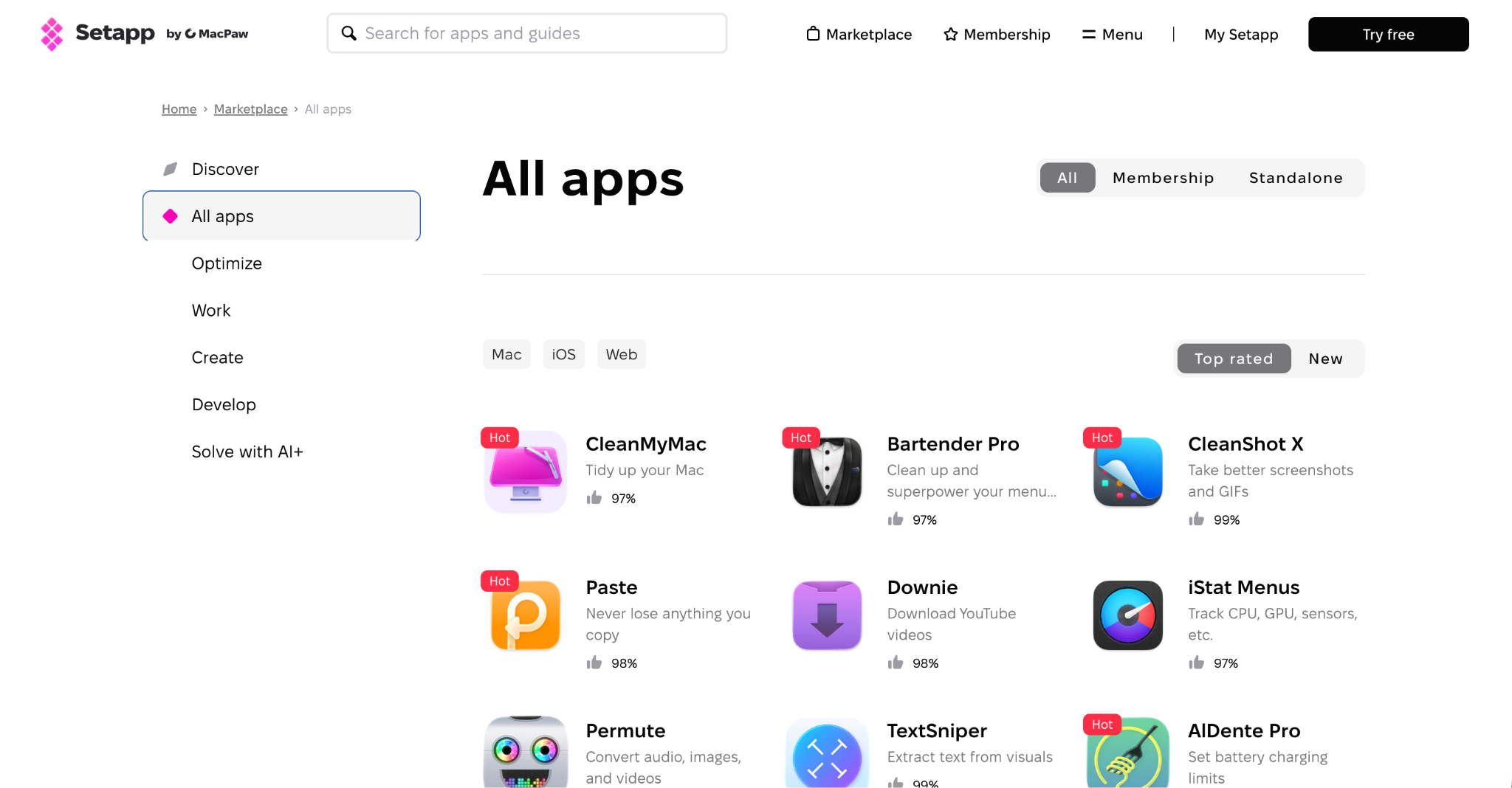
How to Download Apps from Setapp
Setapp works much like a traditional app store. Follow these steps to download applications:
- Register on the official Setapp website and activate the free trial or purchase a subscription straight away.
- Open the downloaded file and drag the platform icon into the Applications folder to install it.
- Launch Setapp on your Mac and sign in with the account you created.
- Find the required application using the search bar or browse the curated collections.
- Click Install on the selected application’s page. Within a few minutes, the utility will automatically appear on your Mac.
The first three steps are only required during the initial setup. Setapp offers two subscription options: one for macOS only and another covering both macOS and iOS.
What Should You Install on a MacBook First?
Once you have become familiar with the interface, the next question is what to install on your MacBook. macOS already includes a basic set of applications that is sufficient for everyday tasks. You may also add:
- office applications — Microsoft Office, including Word and Excel, can complement Apple’s built-in iWork suite, which includes Pages, Keynote, and Numbers for working with documents, presentations, and spreadsheets;
- browsers and messengers — Safari uses less battery power, but Chrome can also be installed, while Telegram, WhatsApp, and Slack are useful for communication;
- cloud storage services — use the built-in iCloud Drive to synchronise data between devices or connect a third-party service such as CloudMounter;
- password managers — Keychain protects personal data, while Secrets 4 can provide additional password management features;
- file management tools — Archiver is designed for extracting archives, while Commander One helps organise and manage files;
- note-taking and planning applications — the standard Notes app synchronises with an iPhone and iPad almost instantly, while 2Do is suitable for planning;
- image and video editing software — CameraBag Pro can be used to retouch photos, while SwiftShip Previews is suitable for video editing;
- system cleaning and monitoring tools — CleanMyMac helps remove accumulated cache files and update installed software.
Take the transition one step at a time. The easiest way to transfer files from Windows to Mac is to use Migration Assistant. The built-in software is enough to learn the new operating system, and professional applications can be added later.

Is It Worth Switching from Windows to a MacBook Neo in 2026?
The MacBook Neo ultrabook is an ideal choice for learning macOS without stress. It is a good and affordable option for work, study, and creative tasks. The device features a comfortable Liquid Retina display with 500 nits of brightness and an unusual colour palette, including the classic Indigo and Silver finishes and the vibrant Blush and Citrus options. At the same time, the device offers all the advantages of Apple technology: thoughtful design, durability, and long battery life.
You can test the MacBook Neo in person at iSpace retail stores, an Apple Premium Reseller in Armenia. The latest devices are always available on display, and the experts are ready to help you choose. You can also contact us online by phone or through the website chat. To make the purchase more affordable, use the instalment payment option. Online orders can be delivered throughout the country.
FAQ
Why Is the MacBook Neo Suitable for Switching from Windows?
The device combines an affordable price, an easy-to-use operating system, strong performance, and completely silent operation.
Who Are Switchers?
Switchers are users who decide to move from one computer platform to another, such as switching from Windows to macOS.
What Advantages Does the MacBook Neo Offer Switchers?
The device has several useful advantages:
- up to 16 hours of battery life;
- a bright Liquid Retina display;
- support for Apple Intelligence features;
- access to Apple services such as AirDrop.
These features make the MacBook Neo suitable for everyday use, study, and creative tasks. They also help new users become familiar with the Apple ecosystem more quickly.
Do Windows Programs Work on a MacBook?
macOS cannot run .exe files directly. However, many developers, including Microsoft, offer versions of their applications adapted for Mac.
Can Windows Be Installed on a MacBook Neo?
Boot Camp is available on Mac models with Intel processors, but it is not supported on Apple Silicon chips. Virtualisation tools such as Parallels Desktop can be used to run a Windows environment.
What Can the MacBook Neo Be Used For?
The laptop is suitable for working with documents and spreadsheets, editing photos, watching videos, joining video calls, studying, and browsing the internet. It can also handle fast-paced games.
ALSO READ:
iMac or Mac mini: Choosing a Universal Computer for Study and Entertainment
MacBook Air With The M5 Chip — A Unique New Release Of The Year
How to Reinstall macOS: A Step-by-Step Guide
Always be aware!
Subscribe to the newsletter and be the first to know about new promotions and special offers