
Tablе of Content
There can be many reasons why a MacBook stops working. Most often, the issue is related to power: a discharged battery, a damaged cable, or a faulty adapter. Other faults may be caused by software errors, liquid damage, or internal hardware issues.
What you can do:
- Check the cable, port, and power outlet: they should all be working properly.
- Press and hold the power button for 10 seconds, then try turning the laptop on again.
- Disconnect any accessories.
Try restoring the laptop through macOS Recovery.
If there are no signs of operation, contact a service center. If you were already planning to upgrade to a new Mac, you can buy one at iSpace.
Common Reasons Why a MacBook Won’t Turn On
If your Mac is not working, start by checking the charging accessories, power outlet, and charging port. Other possible causes include:
- software failure — a software conflict may prevent the system from booting;
- hardware malfunction — issues with the logic board or a failed chip;
- external factors — the system may conflict with connected external devices.
The problem may also be related to the battery. It is a consumable component designed for a specific number of charge cycles, after which it needs to be replaced.
Step-by-Step Action Plan
If your MacBook won’t turn on, don’t panic. Apple recommends the following sequence of actions:
- Check the power system. Inspect the cable and adapter for damage, and try plugging the laptop into a different power outlet. The issue may be caused by deep battery discharge, especially if the computer has not been used for a long time. Connect it to power and leave it charging for 1–3 hours.
- Press and hold the power button for 10 seconds, then release it and try turning the device on in the usual way.
- If that doesn’t help, disconnect external devices such as hubs, flash drives, and external drives, then repeat step 2.
- If the laptop turns on but does not boot completely, start macOS Recovery. Press and hold the power button until you see “Loading startup options” or the “Options” icon, then select the settings and click “Continue.”
- Restore the startup disk using the utility. In the same mode, open Disk Utility and run First Aid for Macintosh HD. If the laptop starts with a blank screen, open Recovery again and reinstall macOS.
These are standard troubleshooting steps. If they do not help, a deeper diagnosis is needed, so contact a service center.
MacBook Stuck on the Apple Logo: How to Fix It

A MacBook may get stuck on the Apple logo when the operating system starts loading but internal conflicts prevent the process from completing. The troubleshooting process is straightforward: try each of the methods described in the previous section one by one. Start by restarting the laptop and resetting the startup process — press and hold the power button for 10 seconds.
Specific Issues in Popular Models
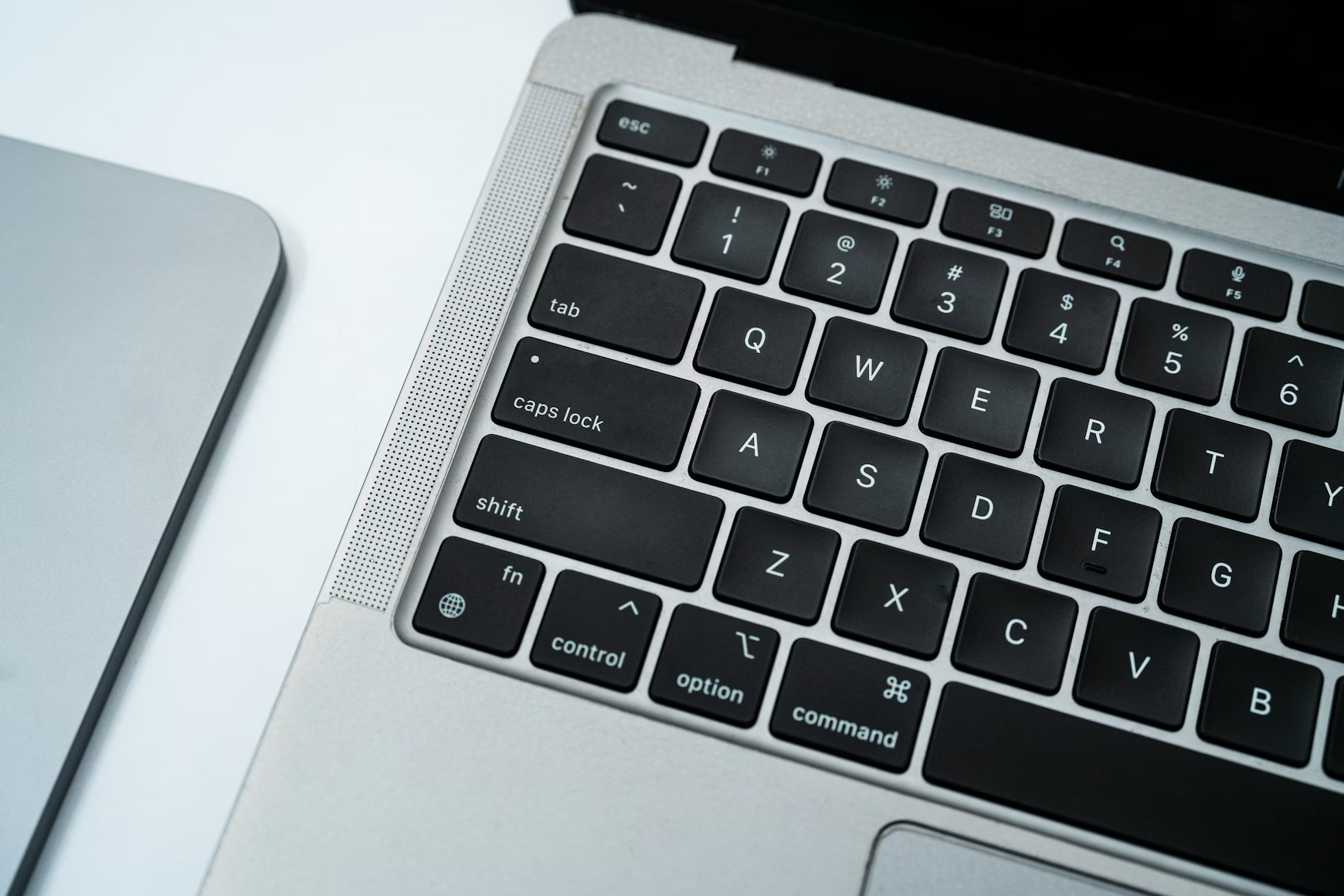
On older devices with Intel processors, the steps above include one additional action: resetting the SMC. This controller manages system functions, power, and the battery. To reset it:
- press and hold Control + Option + Shift;
- keep holding them for 7 seconds;
- add the power button and hold all four keys for another 7 seconds;
- turn the device on in the usual way.
On models with Apple Silicon chips, such as the M-series, this step is not required. Instead, press and hold the power button for 10 seconds.
Maintenance and Prevention Tips
Simple rules can help prevent MacBook startup issues:
- use original adapters and cables;
- update macOS to the latest versions;
- enable Optimized Battery Charging in system settings;
- monitor the battery condition.
Restart the device regularly instead of only putting it into sleep mode. This clears memory and resets temporary parameters.
What to Do If Your MacBook Still Won’t Turn On
If the issue is still not resolved, do not try to disassemble the device yourself. Contact the authorized iSupport service center, which operates in Armenia according to Apple standards. The specialists will accurately determine why your Mac is not working, run diagnostics, and offer a solution. The service center is located in Yerevan at 7 Amiryan Street.
If you want to fully upgrade your device, choose gadgets at iSpace, an official Apple Premium Reseller partner. The team will help you choose a device, explain all important details, and set up your account if needed. You can order devices online with delivery across Armenia or visit physical stores in Yerevan, where you can test the gadgets in person.
FAQ
How do I force-start a MacBook?
Press and hold the power button for 10 seconds. Release it, then press it again to start the device.
What should I do if my MacBook does not respond to the power button?
Check that the power outlet is working. Make sure the cable is intact and the charging port is clean. Leave the laptop charging for a while.
How do I force restart a Mac?
If the laptop is frozen and does not respond to any actions, perform a force restart: press and hold the power button for 10 seconds, wait a moment, then press it again once.
What should I do if my Mac does not wake from sleep mode?
Press any key on the keyboard or swipe across the trackpad. If the display still does not wake up, press and hold the power button to force restart the device.
How do I restart a MacBook using the keyboard?
Use the Control + Option + Command + power button combination. This option closes apps and shuts down the device. If you remove the Option key, the action is repeated, but without saving open documents.
What is the average lifespan of a MacBook?
Apple devices can last for years. However, the approximate battery lifespan is 5–7 years, after which it may need to be replaced.
Why is my Mac screen black even though it is turned on?
A black display that does not respond to the trackpad may be related to software issues. Press and hold the power button for 10 seconds, then start the laptop again.
ALSO READ:
iMac or Mac mini: Choosing a Universal Computer for Study and Entertainment
MacBook Air With The M5 Chip — A Unique New Release Of The Year
iPhone 17e — What’s New That Apple Offers
Always be aware!
Subscribe to the newsletter and be the first to know about new promotions and special offers