
Tablе of Content
Working in multiple apps at the same time makes life easier for just about everyone who uses a laptop. Constantly switching between browser tabs and documents is tiring and reduces concentration. In this article, we’ll explore how to split the screen on a MacBook to organize a comfortable workflow.
Why use Split View on a MacBook?
Whether you’re creating graphics from scratch, writing code, or editing a report, a second screen makes your work easier. Split View optimizes your workspace by letting you arrange two apps side by side. You stay focused on your tasks and don’t waste time. Plus, Apple laptop displays have high resolution, so information remains clear and legible even on a 13-inch screen.
How to Enable Split View on a MacBook: A Guide
Split View is a standard feature on Mac. The system automatically hides unnecessary elements (the Dock and menu bar) so you can focus on your work. You can split the screen in just a couple of clicks:
1.Hover your cursor over the green button in the top-left corner of the window you want to move.
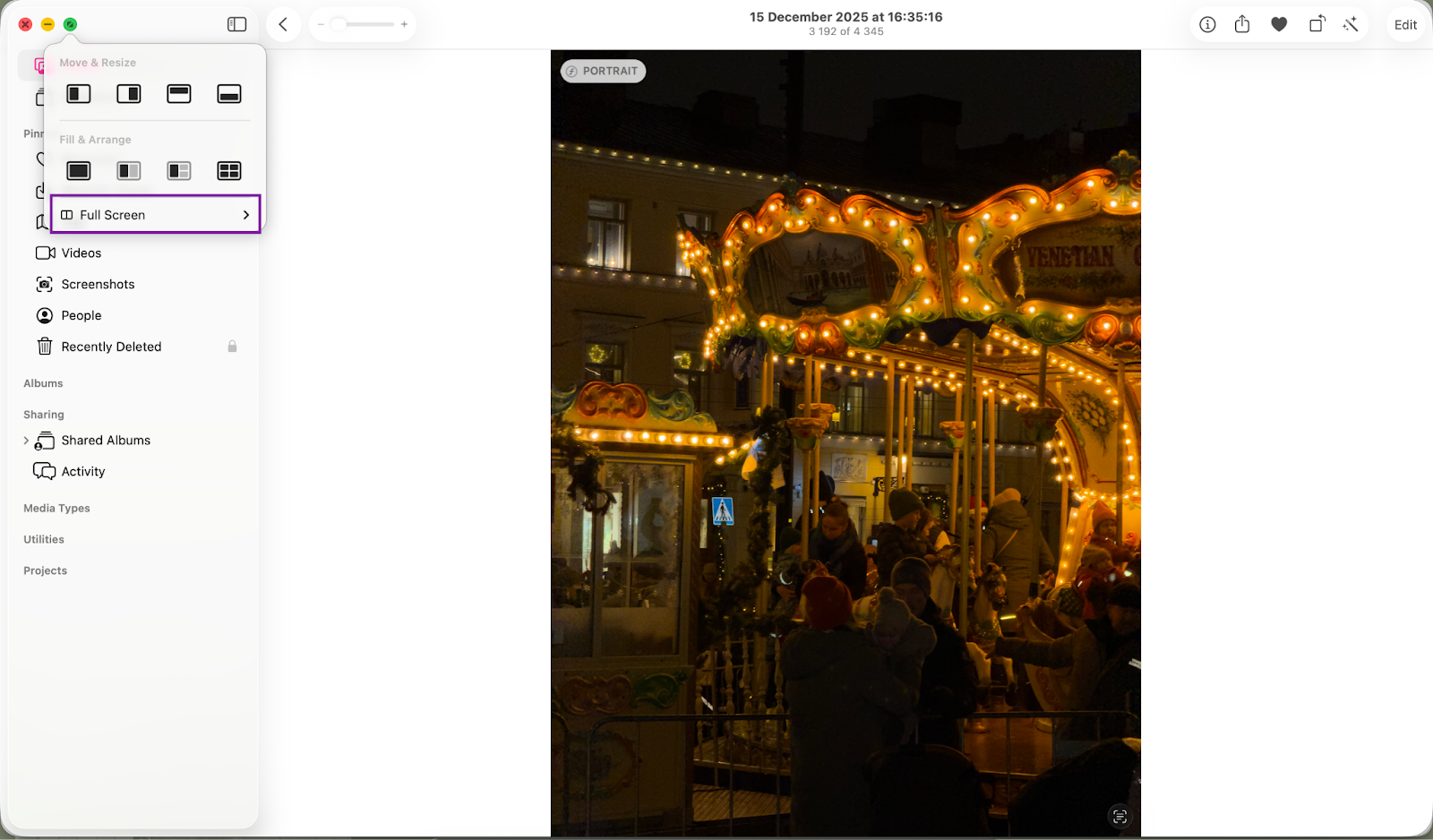
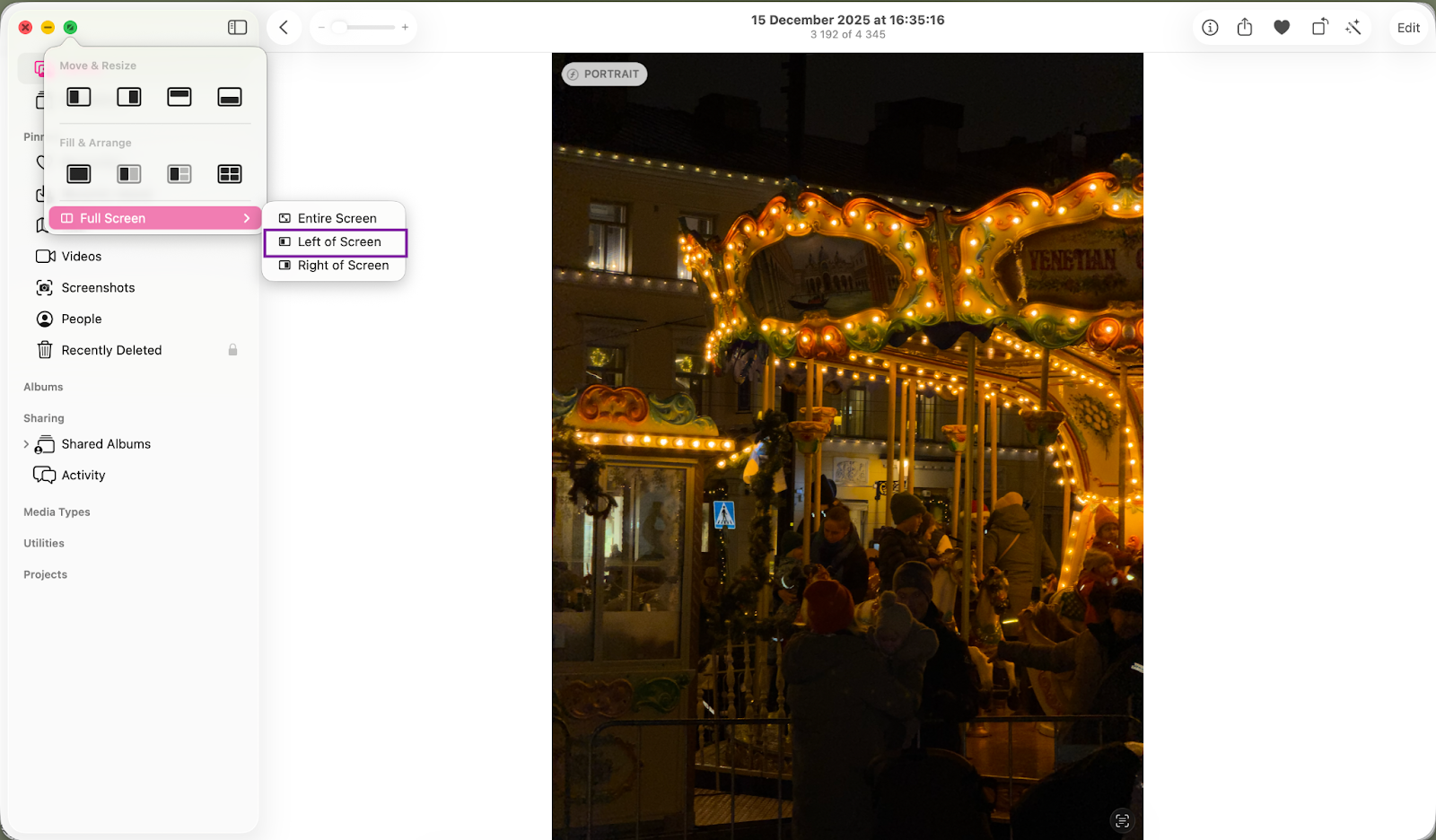
2.From the drop-down menu, select “Full Screen,” then choose either “Place Window on the Left” or “Place Window on the Right.”
3.The selected app will take up half the screen, and the system will prompt you to choose a second window for the other half.
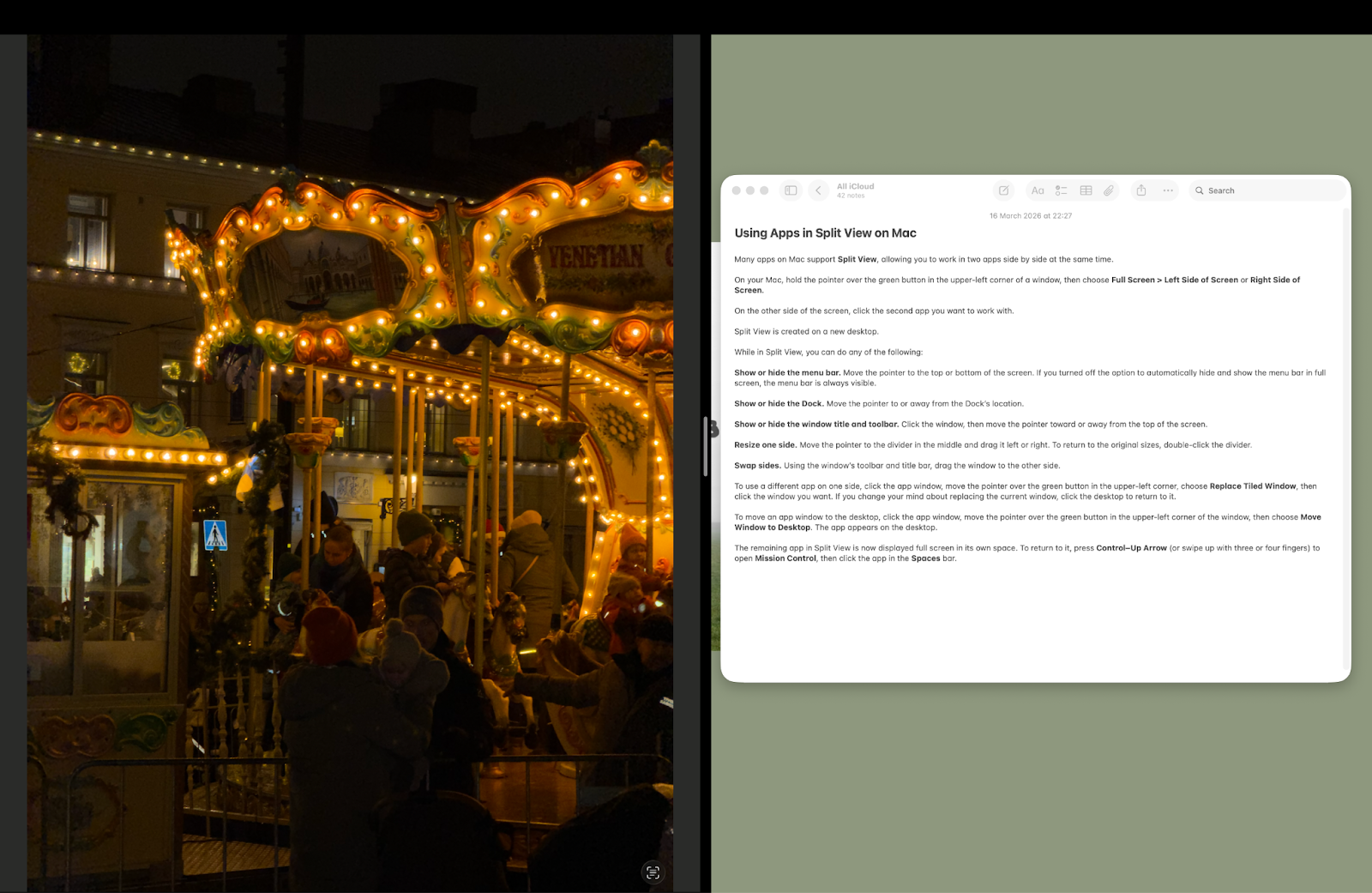
4.Click on the program you want to open in this group for shared viewing.
To work efficiently, divide the space between different tools. Split-screen mode doesn’t restrict you to a strict 1:1 ratio. Simply drag the vertical black line in the center to adjust the scale. If you want to return to the standard view, just hover your cursor over the top of the display, open the control menu, and select the desired option.

If you want to speed up your workflow on a MacBook, take advantage of the trackpad and keyboard. You can customize keyboard shortcuts in System Preferences. Standard gestures are also handy: swiping up on the trackpad with three or four fingers activates Mission Control, letting you view other open apps.
Practical Use Cases for Split View on Mac
Splitting the display into zones opens up a wealth of possibilities for users with different needs. Here are some interesting ideas for:
- students — a video lecture on Zoom and notes in Notes;
- programmers — writing code and a window showing the results;
- office workers — two versions of the same document;
- analysts — an Excel spreadsheet and monitoring market charts in a browser;
- designers — the main workspace and reference materials;
- copywriters — a text editor and a source of information.
This kind of organization helps structure the execution of complex projects. Save time and stay productive — macOS is here to help.
Organizing Your Workspace with Mission Control
When you have a lot on your plate, a single extension isn’t enough. Plus, Split View only lets you optimize two windows at a time. That’s where Spaces comes in — it helps you keep your tasks organized.
The Mission Control tool displays all open apps on a single layer. It also lets you create multiple virtual spaces for different tasks. For example, in one space you can keep programs for project analytics, in the second — apps for communicating with colleagues or clients, and in the third — a browser with YouTube open and the Books app. To access Mission Control, swipe three fingers across the trackpad, then click the “+” in the upper-right corner.
To switch between desktops, use standard gestures — swipe three fingers sideways across the trackpad. To exit the tool, simply swipe down with the same gesture.

Conclusion: How Does Split Screen Affect Your Productivity?
Knowing how to use macOS tools effectively has a direct impact on your productivity. When you stop switching between windows haphazardly, you can immerse yourself more deeply in the task at hand. Try using Split View and Mission Control to see for yourself how they affect your focus. Divide tasks into priority and secondary ones, utilizing your MacBook’s display to its fullest potential. If you want to learn more about the hidden features of your device, we look forward to seeing you at iSpace. We are an official Apple partner with Apple Premium Reseller status in Armenia. Our experts will be happy to help you choose and configure a device tailored to your needs. If you’re planning to upgrade your device, we offer attractive terms. Take advantage of installment plans and our loyalty program with bonus points. We have a physical store in Yerevan: come visit and test the devices in person.
FAQ
Can I open three apps at once in a single Split View window?
The standard feature supports two windows. If you need more, activate Mission Control to create additional desktops.
How do I quickly exit Split View on a MacBook?
Move the cursor to the top edge of the display, wait for the green button to appear in the corner of the active window, and click it. The app will return to its standard size.
Can I resize windows?
Yes, simply drag the black divider bar between the apps to the left or right. You can set any aspect ratio.
How do I switch between app pairs?
The easiest way to switch to another app pair is to swipe right or left with three fingers on the trackpad.
ALSO READ:
iMac or Mac mini: Choosing a Universal Computer for Study and Entertainment
MacBook Air With The M5 Chip — A Unique New Release Of The Year
iPhone 17e — What’s New That Apple Offers
Always be aware!
Subscribe to the newsletter and be the first to know about new promotions and special offers